

WhatsApp Plugin Documentation
The WhatsApp Messaging Plugin extends the application by enabling direct WhatsApp communication with leads through approved messaging providers.Using this plugin, users can create WhatsApp message templates, submit them for approval (where supported),send automated or one-off WhatsApp messages, and track real-time delivery, read, and failure statusesthrough webhook callbacks.
This plugin supports multiple providers, including Twilio, MSG91, and WATI.Template management differs depending on the provider:
- Twilio and MSG91 support creating and submitting WhatsApp templates for approval directly from within the application.
- WATI does not allow template creation through APIs; templates must be created in the WATI dashboard. However, the plugin still allows sending WhatsApp messages using thosetemplates and retrieving message status updates for reporting and analytics inside the application.
With flexible provider integration, automated campaign actions, and message delivery insights,this plugin enables businesses to run reliable, event-driven WhatsApp communication workflowsdirectly from the application.
Installation & Setup
Prerequisites
- Administrative access to install plugins.
- Composer (if plugin dependencies are managed externally).
Installation Steps
- Copy the WhatsappBundle into the application’s
plugins/directory. php bin/console mautic:plugins:reload- Log in to the application’s admin panel and navigate to Settings → Plugins.
- Locate the WhatsApp Plugin with the required provider and enter credentials.
- Clear cache and run
bin/console m:a:g, then verify the plugin is active.
Fetching the WhatsApp Templates
Once the plugin is installed and your provider credentials are configured, you may need to import existing templates from your WhatsApp provider into the application. This includes templates that were previously created directly in Twilio, MSG91, or WATI dashboards.
To synchronize all existing WhatsApp templates into the application, run the following console command:
php bin/console fetch:whatsapp:templatesWhatsApp CRUD
The WhatsApp Plugin currently supports template CRUD and messaging through Twilio,MSG91, and WATI. However, not all platforms offer the same levelof control for template creation.
Twilio
Twilio allows full template creation and submission directly from the plugin.
- You can create templates inside your application.
- After creating a template, it requires manual submission for approval via Twilio’s Content API.
- Only after approval can the templates be used to send messages.
- Delivery statistics (sent, delivered, read, failed) are tracked via webhooks.
Creating a Template
- By default, the text header is disabled for the Twilio platform.
- Name indicates the template’s unique name. Only lowercase letters and underscores are allowed (not alphanumeric or uppercase).
- In the Media section, you can upload media.It supports images, videos, and documents up to 2MB.
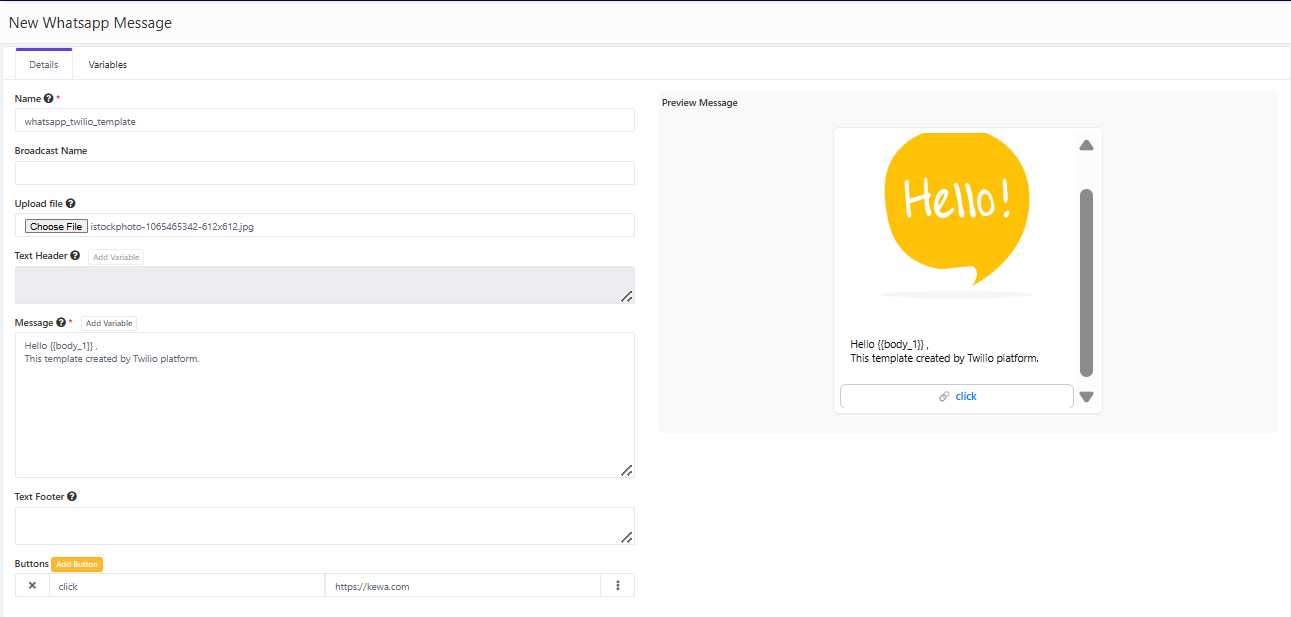
- In the Message section, you can write the message content using variables.These variables will be replaced with the targeted lead’s data.
To insert variables, click the Add Variable button beside the Message heading. - In the Variables tab, you must enter valid sample data when creating the template for the first time. Later, you can use application variables such as
{contactfield=firstname}in real-time usage.
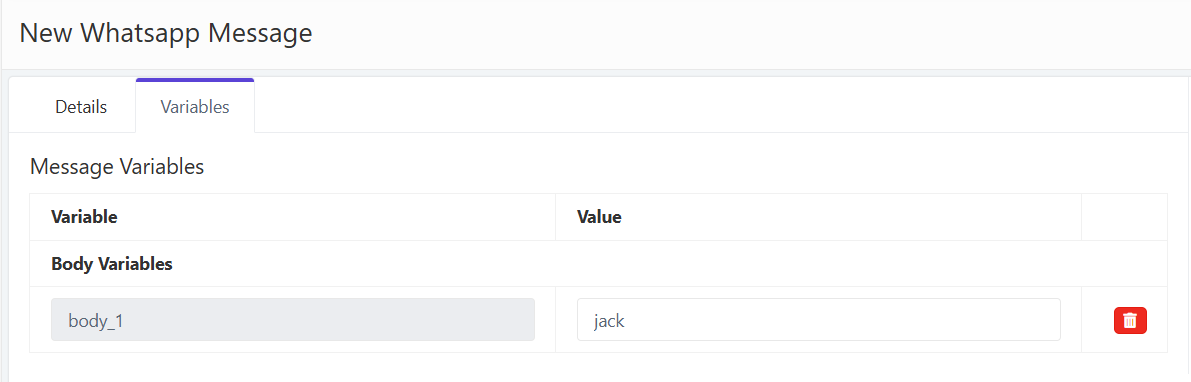
- You can add content in the Text Footer section if needed.
- You may add multiple buttons according to the requirement.
- The right panel shows a live preview of the message.
When you click Save, the template becomes ready for approval.Click Submit for Approval on the detailed view to send the template to META.
Approval may take from 5 minutes up to 24 hours.The status updates in the list view whenever META responds to the template.(The background command f:w:t should run at least every 5 minutes.)
Adding Callback URL in Twilio
- Log in to your Twilio account and copy Account SID, Auth Token, and Twilio Phone Number. Paste them into your application’s Twilio WhatsApp plugin configuration fields.
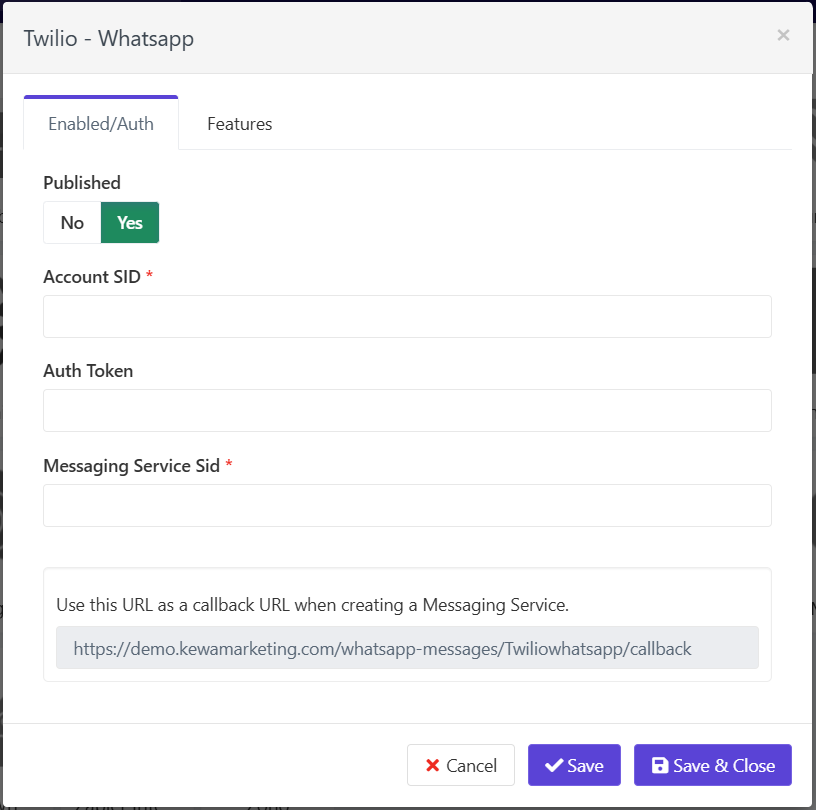
- To get the Messaging Service SID, log in to Twilio and click
Messaging → Services in the left panel. - In the plugin section, open the required platform plugin.
You will see a callback URL. Copy this URL.
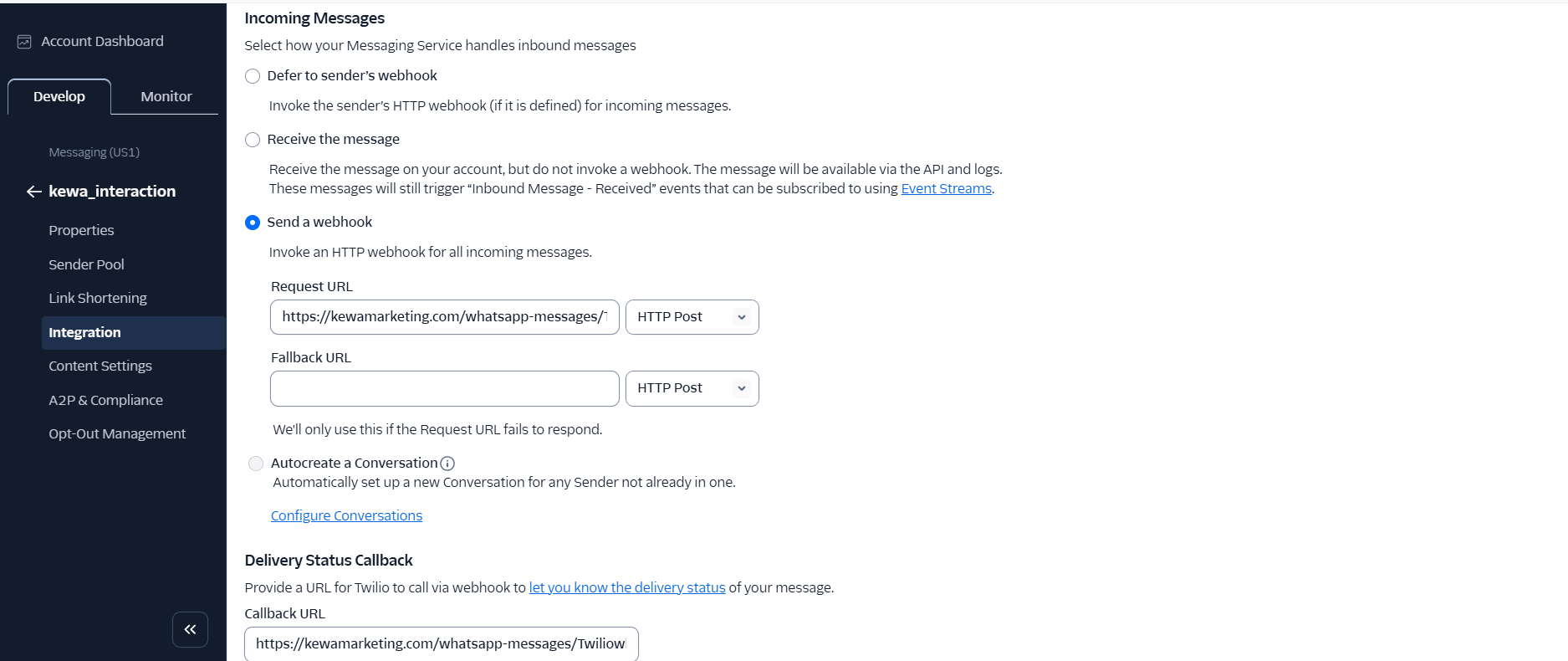
Select Send a Webhook and paste the copied callback URL in boththe Request URL and Delivery Status Callback URL.Now the application will receive delivery statistics and template status updates.
MSG91
MSG91 supports creating templates directly from inside the plugin.
- When a template is created, MSG91 automatically submits it for approval.
- No manual approval action is required in the plugin UI.
- Once approved by META, templates are immediately available for sending.
- Message delivery and read statistics are tracked via callbacks.
Creating a Template
- Use either a text header or media header.
If both are used, the text header will be ignored during META submission. - The template Name must be unique and only lowercase letters
and underscores are allowed. - In the Media section you can upload images, videos, or documents
up to 2MB. - In the Message section, write the message content using variables.
Click the Add Variable button beside the Message heading. - In the Variables tab, provide valid sample data during template creation.
Later you may use application variables such as
{contactfield=firstname}. - You may add a text footer if required.
- You can add multiple buttons based on your requirement.
- The right panel displays a live message preview.
When you click Save, MSG91 automatically submits the template for approval.No manual submission is required.
Adding Callback URL in MSG91
- Copy the callback URL from the application’s MSG91-WhatsApp plugin and log in to your MSG91 account.
- Click Webhook → New and create two webhooks:
- For the first webhook:
- Service: WhatsApp
- Event: On Inbound Report Received
- Method: GET
- Content-Type: JSON
- URL: Paste the callback URL
- Header Key: authKey
- Header Value: Your actual auth key
- For the first webhook:
{
  "contacts": "{{contacts}}",
  "customerNumber": "{{customerNumber}}",
  "contentType": "{{contentType}}",
  "customerName": "{{customerName}}",
  "messages": "{{messages}}",
  "direction": "{{direction}}",
  "replyMsgId": "{{replyMsgId}}",
  "templateName": "{{templateName}}",
  "content": "{{content}}",
  "text": "{{text}}"
}- For the second webhook:
- Service: WhatsApp
- Event: On Outbound Report Received
- Method: GET
- Content-Type: JSON
- URL: Paste the callback URL
- Header Key: authKey
- Header Value: Your actual auth key
- Paste the following body:
{
  "accountManagerEmailId": "{{accountManagerEmailId}}",
  "contentType": "{{contentType}}",
  "content": "{{content}}",
  "customerName": "{{customerName}}",
  "customerNumber": "{{customerNumber}}",
  "direction": "{{direction}}",
  "replyMsgId": "{{replyMsgId}}",
  "requestId": "{{requestId}}",
  "statusCode": "{{statusCode}}",
  "templateName": "{{templateName}}"
}
WATI
WATI does not provide API support for creating or submitting templates.
- Templates must be created and approved manually inside the WATI dashboard.
- The plugin can fetch the approved template list from WATI.
- These templates can then be used inside your application to send messages.
- Message delivery statistics are captured through webhooks.
- Copy the callback URL from the plugin and paste it into the WATI dashboard under callbacks.
WhatsApp Analytics
The plugin provides comprehensive analytics for all WhatsApp templates across connected platforms.This includes both high-level summary insights and detailed drill-down views for individual templates.
List View
In the template list view, you can see:
- Total number of templates
- Current approval status (Approved / Pending / Rejected / Submitted)
- How many messages were sent using each template
- Delivery statistics:
- Delivered count
- Read count
- Failed count
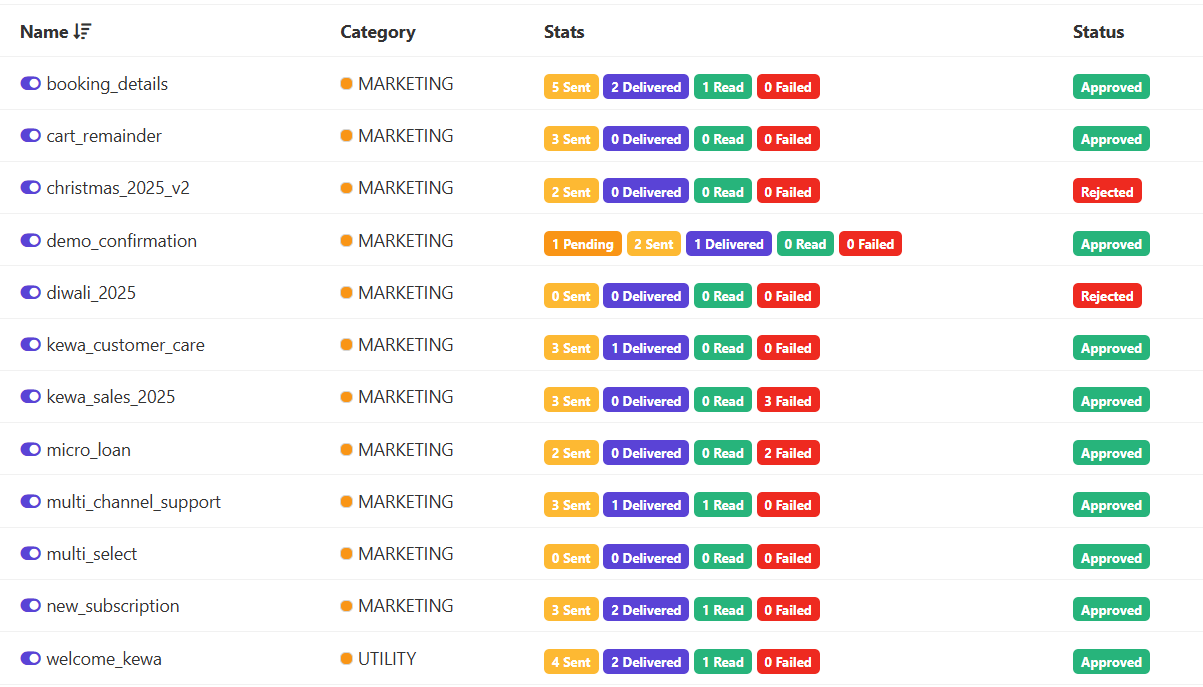
This view makes it easy to quickly identify:
- Which templates are actively being used
- Which ones are performing well
- Which templates are failing or need updates
Detailed View
When viewing a single template, you get a more data-rich visualization of its performance.
This includes:
- Timeline-based charts showing:
- Sent → Delivered → Read → Failed progression
- Total number of contacts engaged
- Contact-level breakdown:
- Who received the message
- Who actually read it
- Which leads resulted in failed or blocked messages
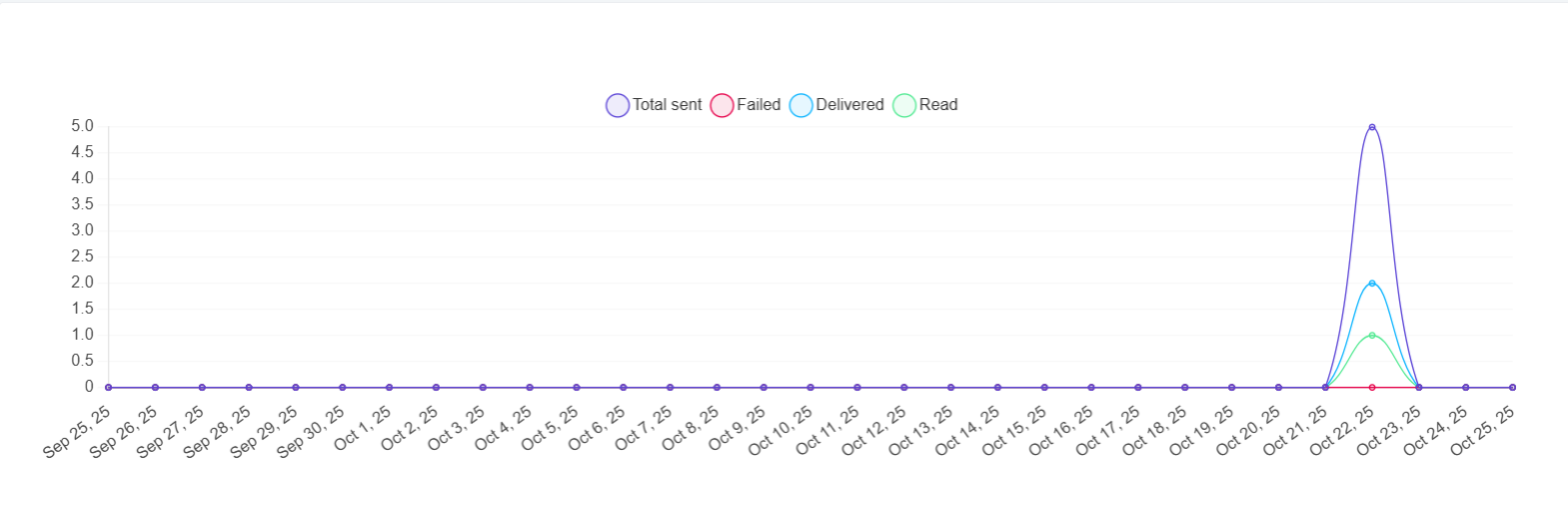
This helps in understanding:
- Engagement trends over time
- Campaign effectiveness
- User responsiveness to specific template content
Contact Timeline
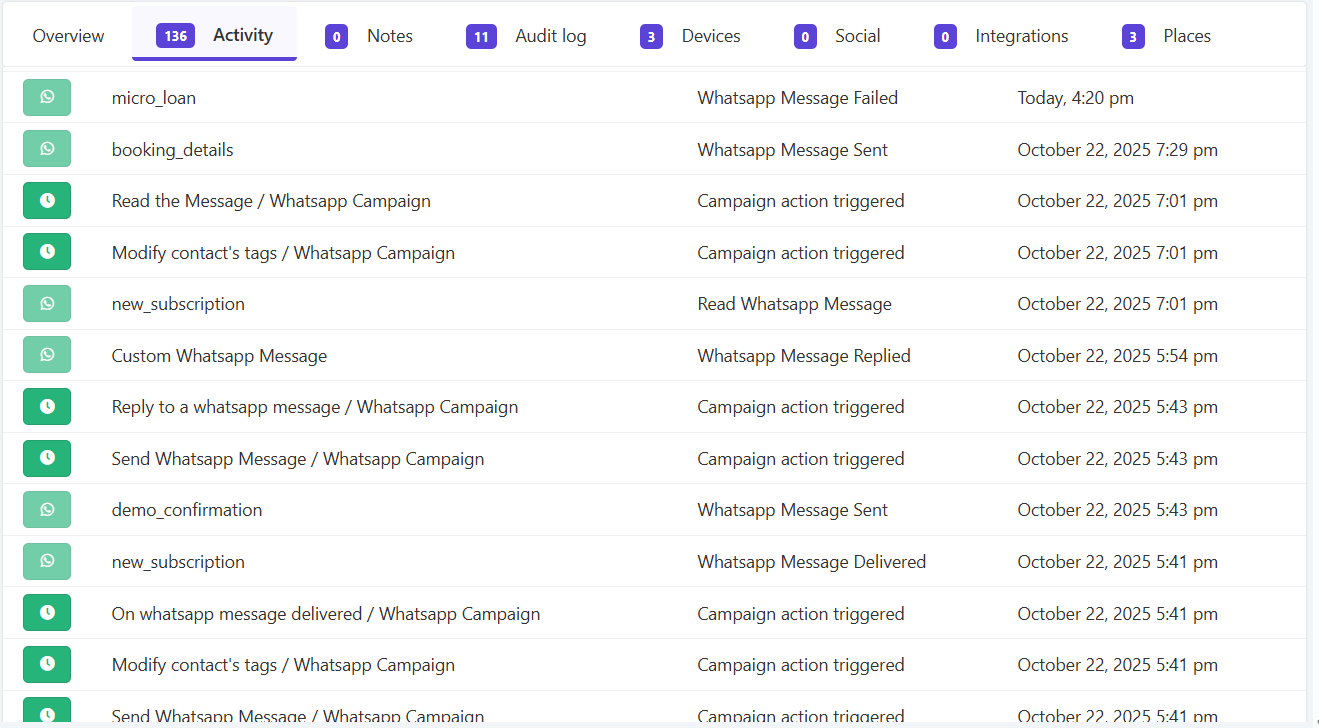
Every WhatsApp message sent through the plugin is logged inside the contact’s activity timeline.This provides full visibility of communication history at the individual lead level.
When a WhatsApp message is triggered (manually, via campaign, or automation),the following details are recorded:
- Template used
- Message content (including merged variables)
- Platform used (Twilio / MSG91 / WATI)
- Status updates received via webhooks:
- Sent
- Delivered
- Read
- Failed
This allows users to:
- Review exact messages sent to the contact
- Track delivery and read confirmation directly in the lead profile
- Understand engagement on a per-contact basis
- Improve follow-up actions, segmentation, and nurturing workflows
Campaign Actions and Decisions
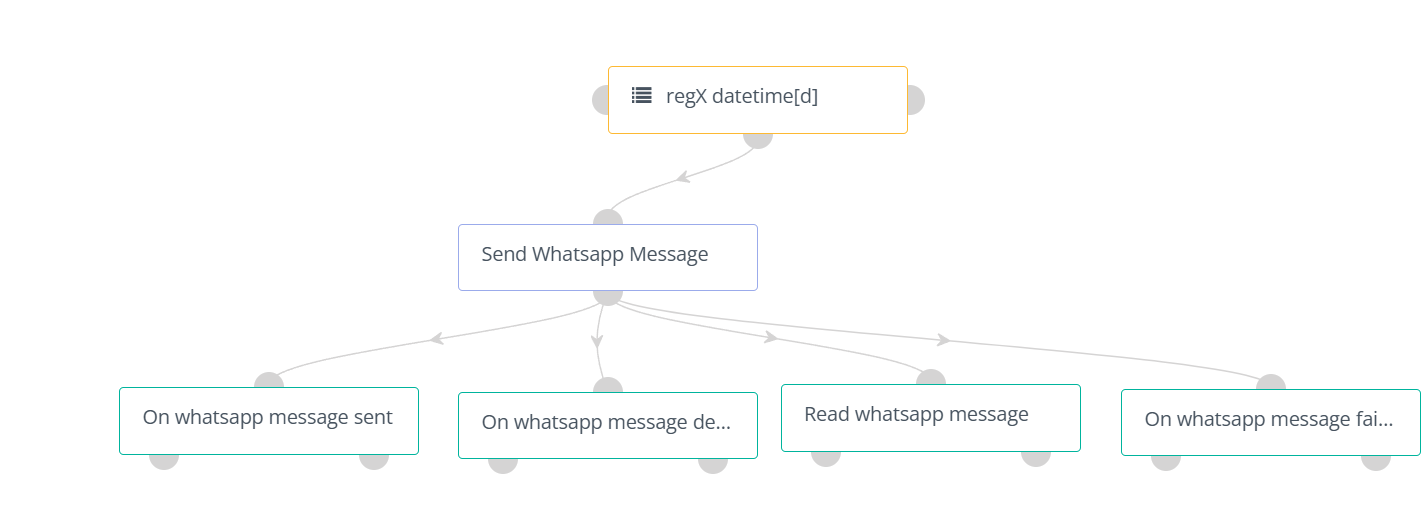
The WhatsApp plugin integrates with the application’s Campaign Builder, allowing automated messaging and conditional flows based on WhatsApp delivery outcomes.
Campaign Actions
| Action | Message |
|---|---|
| Send WhatsApp Message | Sends the selected WhatsApp template to the campaign contact. Variables inside the template are dynamically replaced with contact field values. |
Campaign Decisions
| Action | Message |
|---|---|
| On WhatsApp Message Sent | The message was successfully submitted to the provider. |
| On WhatsApp Message Delivered | The message was delivered to the contact’s WhatsApp device. |
| On WhatsApp Message Read | The contact opened/read the message. |
| On WhatsApp Message Failed | Message could not be delivered (invalid number, blocked contact, or rejected template). |
These decisions enable smart branching workflows such as:
- If message is read → send a follow-up offer
- If delivered but not read → send reminder after 24 hours
- If failed → assign task to sales or send fallback SMS/email
Example Workflow
- Send WhatsApp Message → “Appointment Reminder”
- Decision: On WhatsApp Message Read
- Yes → Mark contact as Engaged
- No → Send WhatsApp follow-up after 6 hours
This ensures each contact receives the correct communication based on actual engagement.